Set up Slack notifications
Updated Jul 14, 2026 · 6 min
Get a Slack message when something important happens in Verbiflow, such as an interested reply, a meeting request, a bounced email, or an accepted LinkedIn connection. This guide shows you how to connect Slack and create your first alert.
A rule is a simple instruction: when this happens, send a Slack message here. You choose what happens, where the message goes, and whether it arrives right away or as part of a summary.
You’ll need:
- Your Verbiflow login
- Your Slack login
- Permission to install apps in Slack. If Slack asks for approval, ask your Slack admin to approve it, then come back to this guide.
Connect your Slack account
Open Verbiflow and go to Integrations. Find Slack and click Connect.
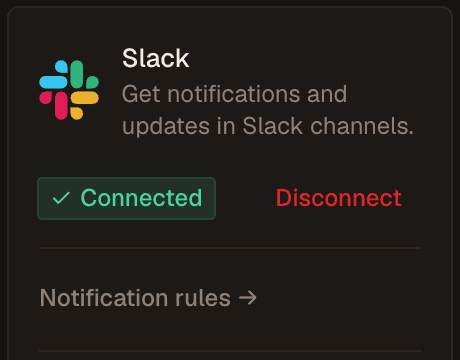
Slack will open. Sign in if needed, review what Verbiflow can access, then click Allow. Slack will send you back to Verbiflow. The Slack card should now say Connected.
Open notification settings
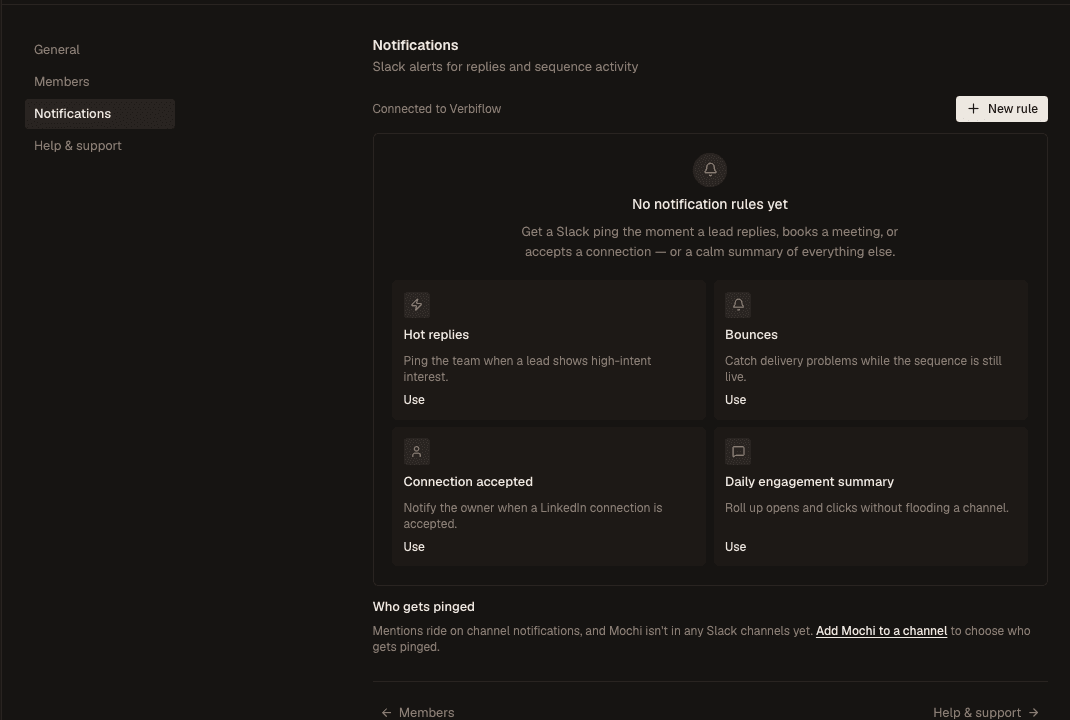
Click Notification rules on the Slack card. You can also open Settings in the sidebar and choose Notifications.
If this is your first rule, Verbiflow offers four useful starting points: Hot replies, Bounces, Connection accepted, and a Daily engagement summary.
Start with the alert your team needs most
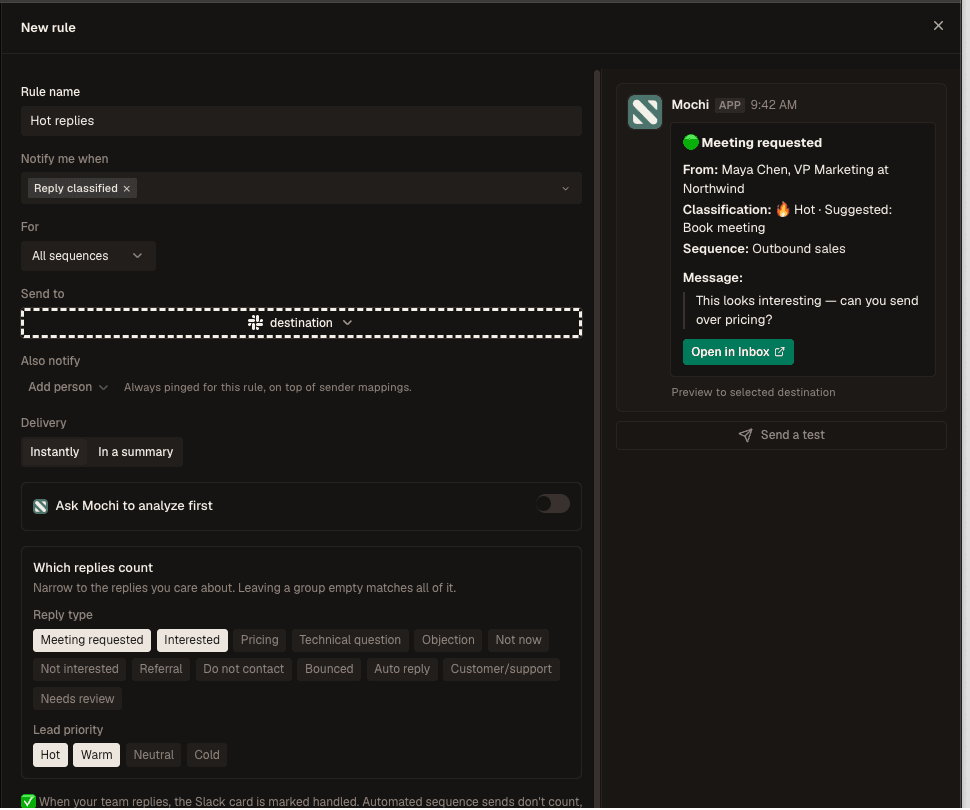
For most teams, Hot replies is the best first rule. Click Use. Verbiflow will start with interested replies and meeting requests already selected. You can still change anything before saving.
Use Instantly for replies, bounces, failures, and connection accepts. Use In a summary for frequent activity such as opens, clicks, and sent messages. A summary groups several updates into one Slack message, so your channel stays useful instead of noisy.
Tell Verbiflow what to send and where
Work from top to bottom in the rule editor:
- Notify me when: choose what should cause a Slack message. Choose Reply classified if you want alerts for interested replies, meeting requests, or other reply types.
- For: choose whether the rule watches all sequences or only certain ones.
- Send to: choose a Slack channel or a direct message.
- Also notify: optionally tag up to 5 teammates in a channel message so they receive a direct ping.
- Delivery: choose Instantly for one message at a time, or In a summary to group updates hourly or daily.
For replies, you can choose which reply types and lead priorities matter to your team. Leaving a group empty means do not filter by this. Turn on Ask Mochi to analyze first if you want Mochi to add a short summary and a suggested next step to the Slack message.
Send a test, then save the rule
Once you pick a destination, click Send a test. Check Slack and make sure the card arrived in the right place. The test is only a preview; it does not contact a lead or change a sequence.
Return to Verbiflow and click Save rule. The rule is active right away. You do not need to restart or republish any sequences.
When someone on your team answers a reply, its Slack card is marked handled. If the lead replies again, the card reopens automatically, so Slack continues to reflect the real conversation state.
Use a different setup for one sequence
Most teams can use the workspace-wide rules above and stop here. If one sequence needs different alerts, you can give that sequence its own rule.
- Workspace-wide rules are created in Settings → Notifications. A rule set to All sequences is your default for every sequence.
- Sequence rules are created inside a sequence under Settings → Notifications. They apply only to that sequence.
If both rules watch the same event, the sequence rule wins for that sequence. Verbiflow sends only the sequence rule, so you do not get duplicate Slack messages. Workspace rules for other events keep working as usual. Both kinds of rules start working as soon as you save them.
Your workspace rule sends all interested replies to #sales. A launch sequence needs those replies in #launch-team, so you add a reply rule inside that sequence. Replies from the launch sequence go only to #launch-team. Your workspace-wide bounce alerts still work because the sequence rule only changed reply alerts.
If you turn off or delete the sequence rule later, the workspace-wide rule automatically takes over again.
If Slack does not receive the test, first confirm the rule has a destination. Then click Add Mochi to a channel on the Notifications page and follow the Slack prompt. Still stuck? Ask in the Verbiflow Slack community or email founders@getverbiflow.com.