Connect your LinkedIn account
Updated Jul 8, 2026 · 5 min
Verbiflow sends LinkedIn connection requests and messages through your own LinkedIn account, synced securely via a Chrome extension. This guide walks you through connecting it, end to end, in about five minutes.
You’ll need three things:
- Google Chrome (the connection runs through a Chrome extension)
- To be logged in to linkedin.com in Chrome
- To be logged in to platform.verbiflow.com in the same Chrome window
See if you already have a sender
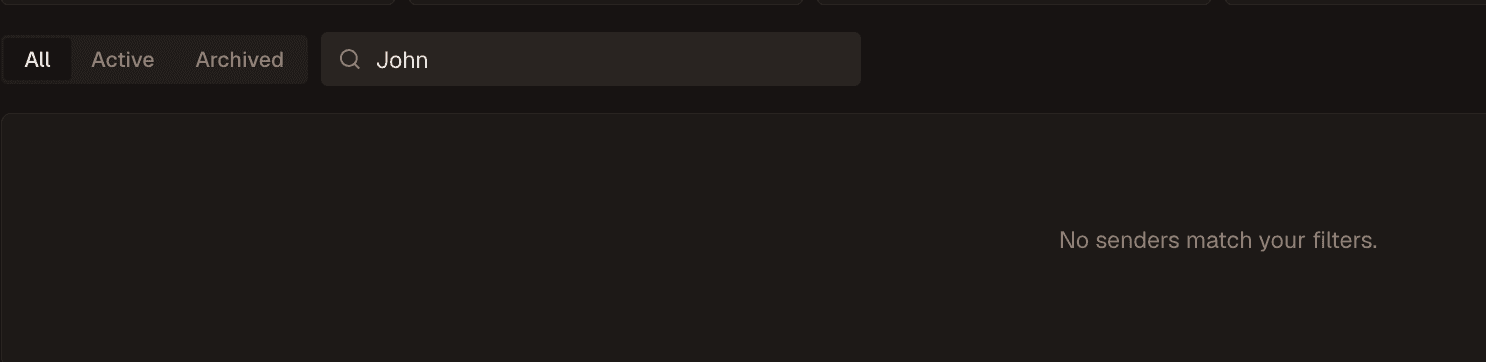
In Verbiflow, a sender is the person your outreach goes out as. It holds their mailboxes and LinkedIn account. Your team may have already set one up for you, so check first: open the Senders page and type your name into the search bar.
Create your sender
Click + New sender in the top-right corner of the Senders page.

Fill in your details. First and last name are required; the rest makes your outreach work better:
- Primary email: used as the reply-to address when this sender receives responses.
- Calendar link: available in your copy as a variable, so sequences can drop your booking link in automatically.
- Linked workspace member: link the sender to your Verbiflow login. We recommend this, since it routes notifications (like replies and connection accepts) to the right person.
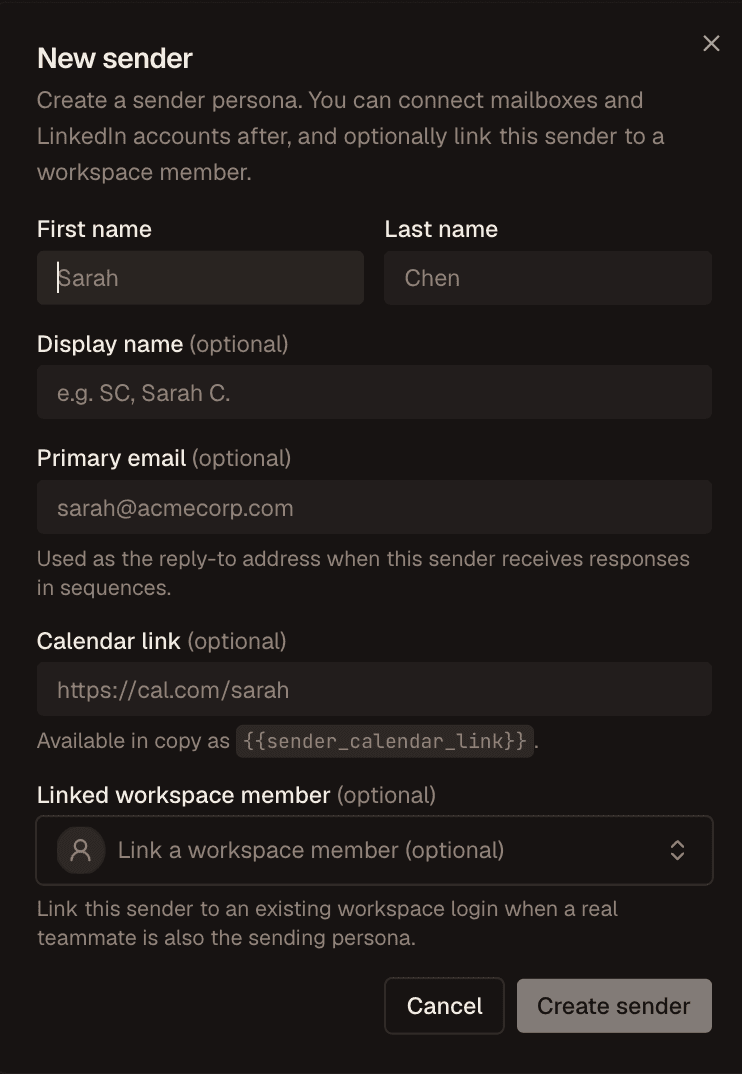
Click Create sender and you’re ready for the next step.
Open “Add account” on your sender
Find your name in the senders list and click the ⋯ button on the far right of the row (right-clicking the row works too).

Then choose Add account from the menu.

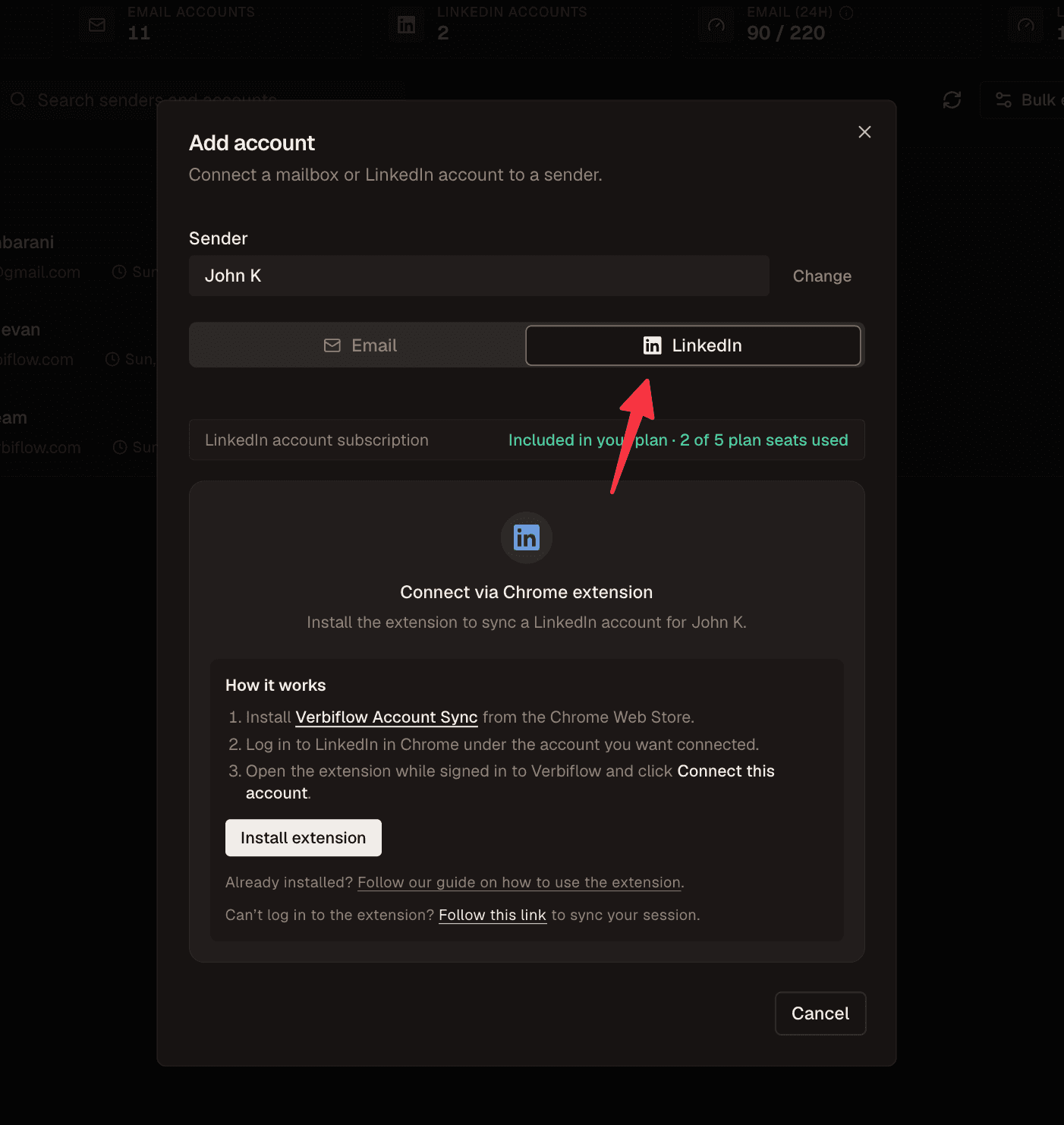
Pick LinkedIn and install the extension
In the dialog, switch to the LinkedIn tab, then click Install extension.
Add the extension to Chrome
The button takes you to the Verbiflow Account Sync listing. Click Add to Chrome and confirm.

Open the extension
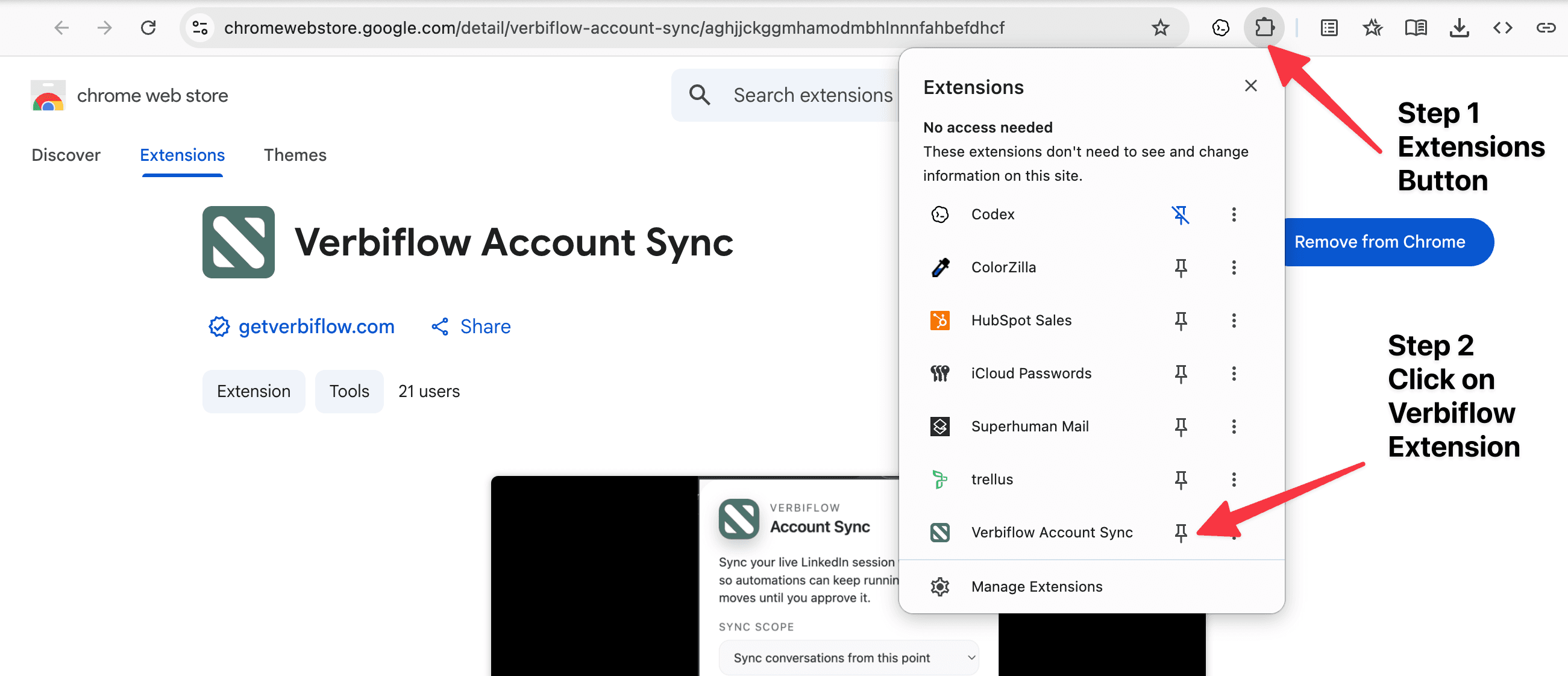
Click the puzzle-piece Extensions icon in Chrome’s toolbar, then click Verbiflow Account Sync to open it. (Pinning it here makes it easier to find later.)
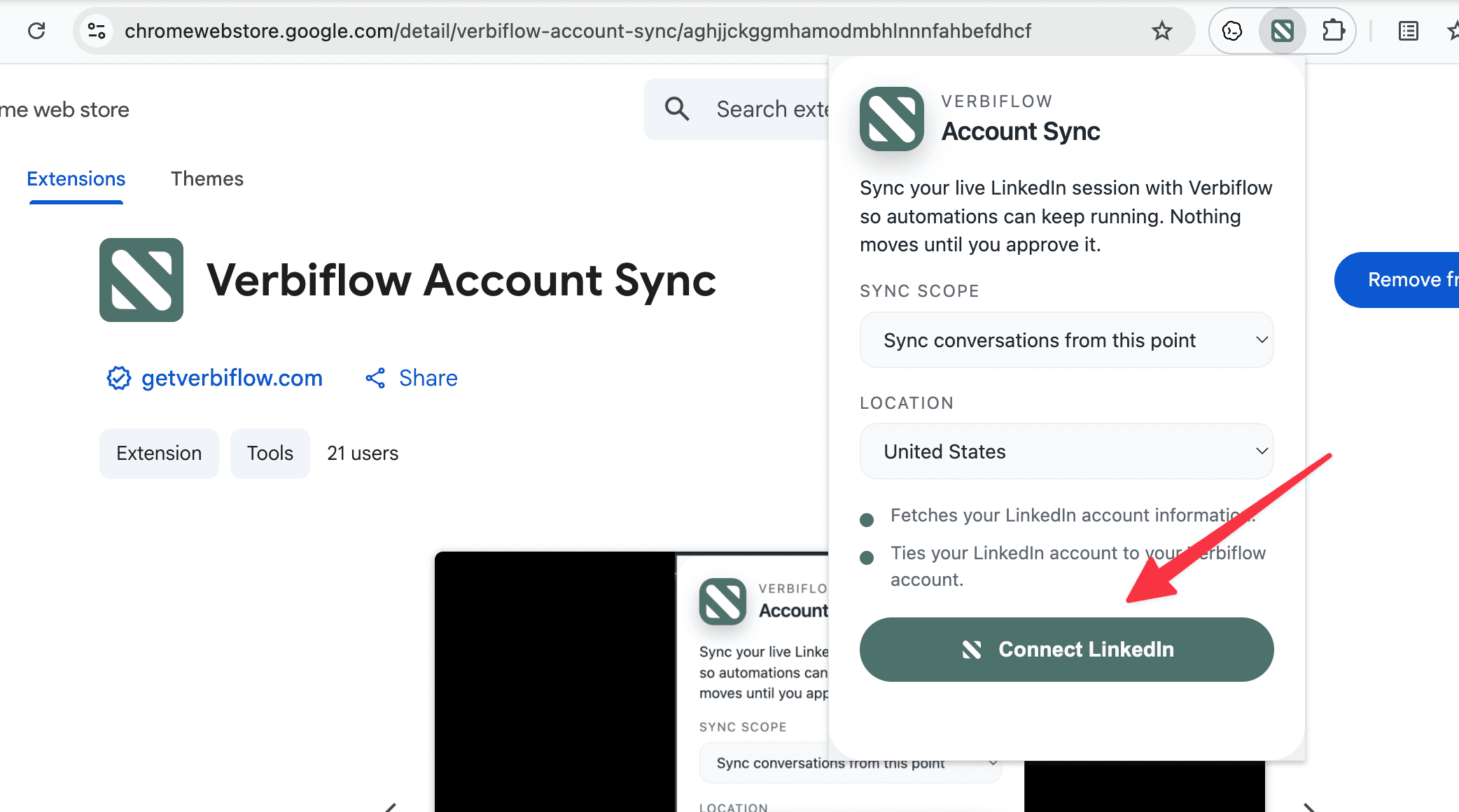
Click Connect LinkedIn
In the extension popup, review the sync scope and location, then click Connect LinkedIn. Nothing sends automatically. This only syncs your session so Verbiflow can act as you when a sequence tells it to.
Allow the extra permissions
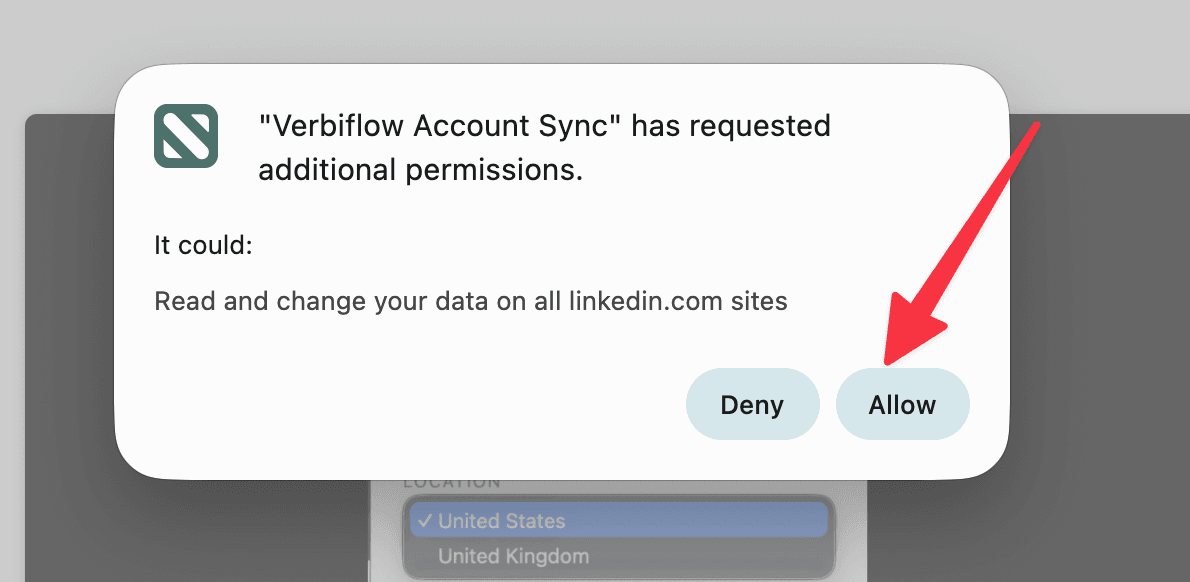
Chrome will ask for additional permissions so the extension can work with LinkedIn on your behalf. Click Allow.
Connect once more, then give it a minute
This last part trips people up: after allowing permissions, open the extension again and click Connect LinkedIn one more time. The first click grants access; the second click actually connects the account.
Wait a minute or two, then check the Senders page. Your LinkedIn account will appear under your sender, ready to use in sequences.